
New feature
3 Nov 2025
Standard Bank Travel add-on
Get the travel add-on on your Banking App to save up to 40% on flights and get exclusive lifestyle benefits.
Step 1 of 18
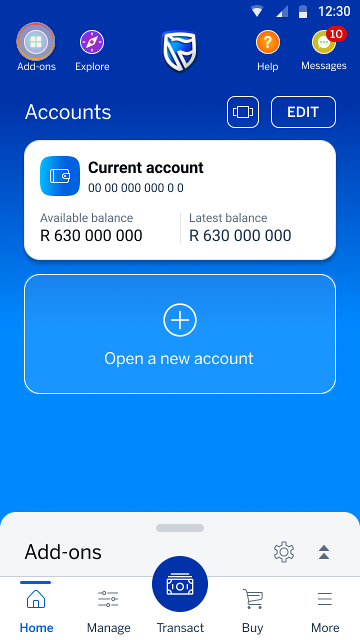
On your home screen, tap the Add-ons icon in the top left-hand corner.
Step 2 of 18
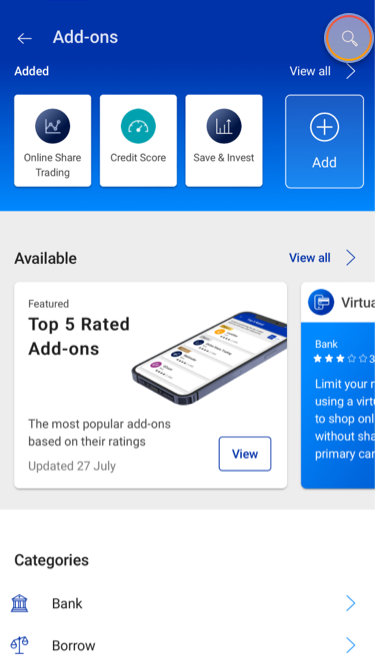
You are now in the Add-on Store. Tap the search icon in the top right-hand corner.
Step 3 of 18
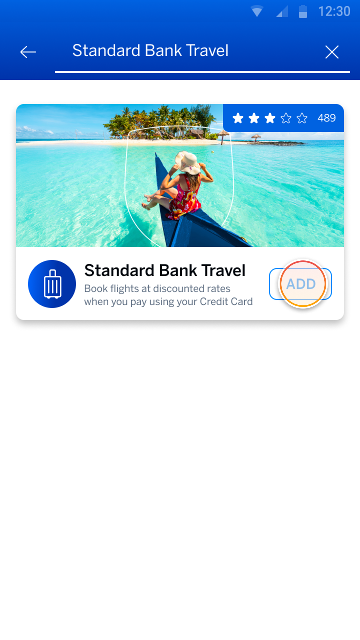
Type “Travel” in the search bar and find the Standard Bank Travel add-on tile.
Tap the ADD button.
Step 4 of 18
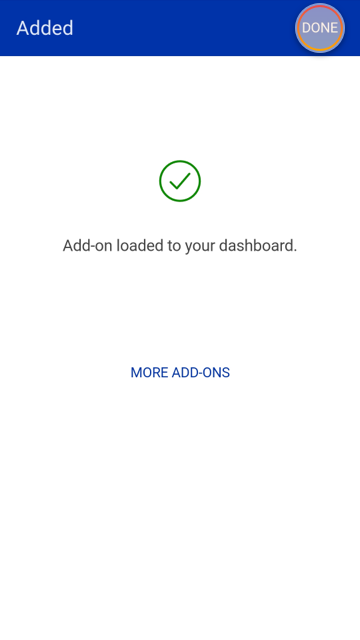
Your Standard Bank Travel add-on is now loaded onto your home screen.
Tap DONE to return to your home screen.
Step 5 of 18
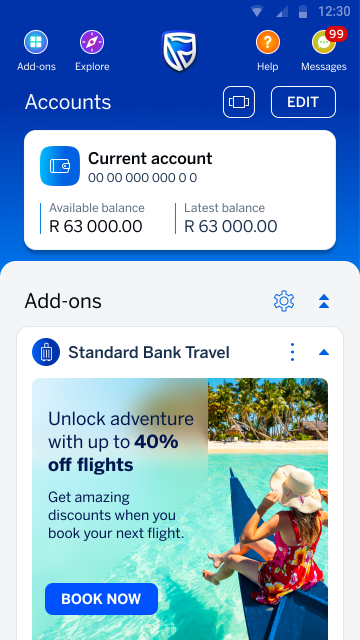
Your Standard Bank Travel add-on will now appear in the Add-ons drawer in the lower section of your home screen.
Note:
You can swipe up on this section to see all your app add-ons.
Step 6 of 18
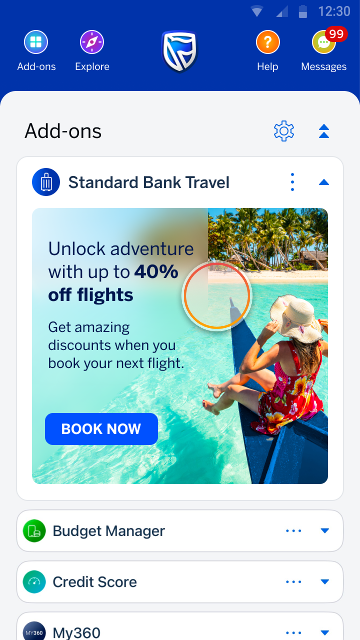
Tap on the Standard Bank Travel add-on to:
- explore what offers you qualify for,
- book flights, or
- manage your bookings.
Step 7 of 18
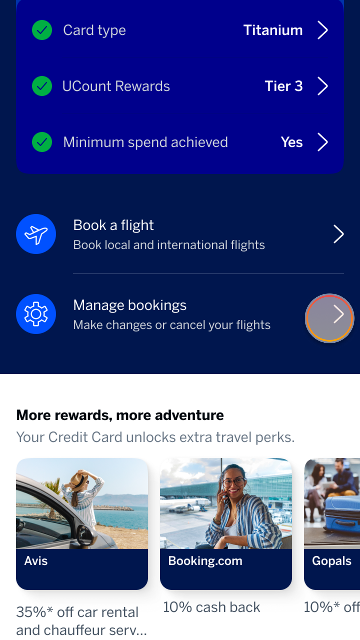
On the Standard Bank travel home screen, you’ll see what discounts you qualify for.
Note:
The green icons indicate what you have achieved. An amber icon means you no longer meet the requirements.

Step 8 of 18
Your Remaining annual discount is the total amount available for you to use within a year.
Tap the arrow to see details and how much you’ve used.

Step 9 of 18
The My Discount Allocation tab provides tips and information on your remaining annual discount.

Step 10 of 18
Tap the Discount history tab to see how you’ve used your discount to date.
When you’re done, tap the back arrow to return to the Standard Bank Travel home screen.

Step 11 of 18
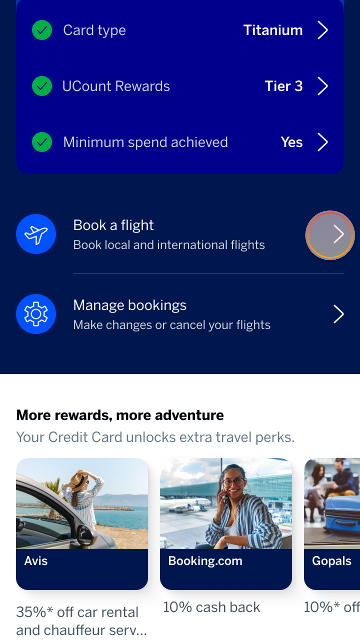
Card type is the product you have that determines what discount you have access to.
Tap the arrow to see more details.

Step 12 of 18
The Card Type section details the minimum spend required to get and keep your discount, along with your spend progress and other important information.
When you’re done, tap the back arrow to return to the Standard Bank Travel home screen.

Step 13 of 18
UCount Rewards is your current UCount Rewards membership status and Tier Level that determines what discounts you may have.
Tap the arrow to see more details.

Step 14 of 18
The UCount Rewards section shows your current Tier Level and the discount percentage it gives you. You can also see the discount for each Tier and other useful information.
When you’re done, tap the back arrow to return to the Standard Bank Travel home screen.

Step 15 of 18
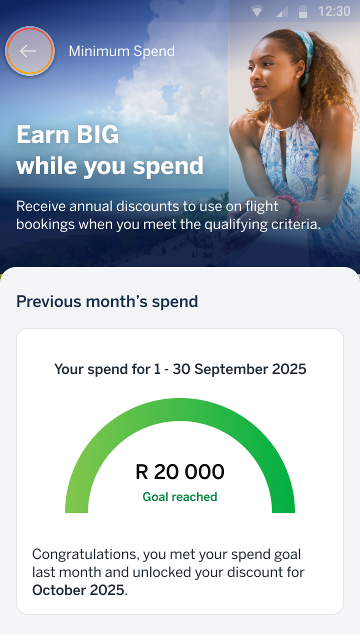
Meet your minimum monthly spend goal to qualify for a discount for the next calendar month.
Tap the arrow to see more details.

Step 16 of 18
The Min 3 month spend section shows your progress towards the minimum spend needed to get your discount and other key information.
When you’re done, tap the back arrow to return to the Standard Bank Travel home screen.
Step 17 of 18
Tap the arrow on Book a flight to make a booking.
Step 18 of 18
Tap the arrow on Manage bookings to make changes or cancel a flights.
Try it on the app
Find and add the Standard Bank Travel add-on.
Try it on the app
Scan the QR code to sign in
Register on the Banking App
* Network costs apply when downloading the app
More things you can do on the app
Managing your money
1 Jul 2025
Budget Manager add-on
Budgeting is about to get easier with our innovative Budget Manager add-on.
Managing your money
12 Sep 2022
Save & Invest add-on
Create and keep track of your money goals and investments in a few easy steps
Managing your money
9 May 2022
Credit Score add-on
Get monthly updates of your credit score, without affecting your credit record.