
Getting to know the app
9 Feb 2026
In-app Calling
Need help? Call us directly from the app – no need to look up our details.
Step 1 of 10
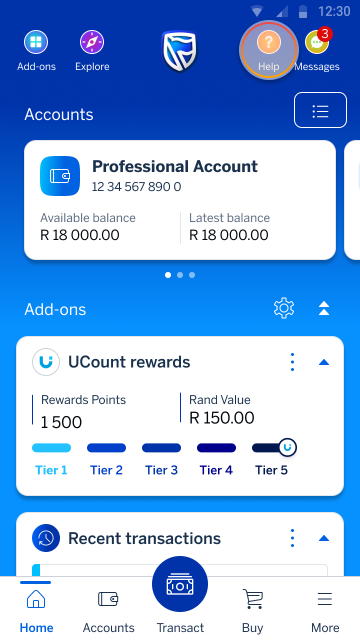
Go to your home screen and tap Help (on top right).
Step 2 of 10
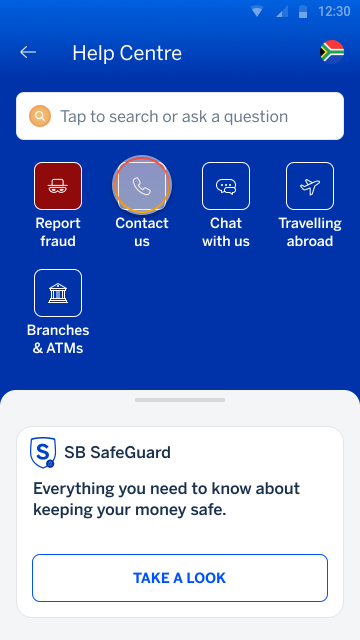
Tap Contact us.
Step 3 of 10
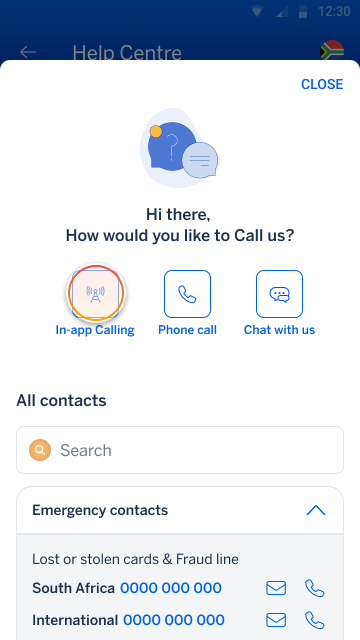
Tap In-app Calling.
Step 4 of 10
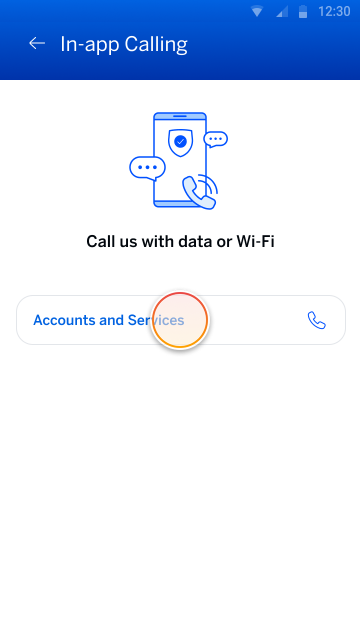
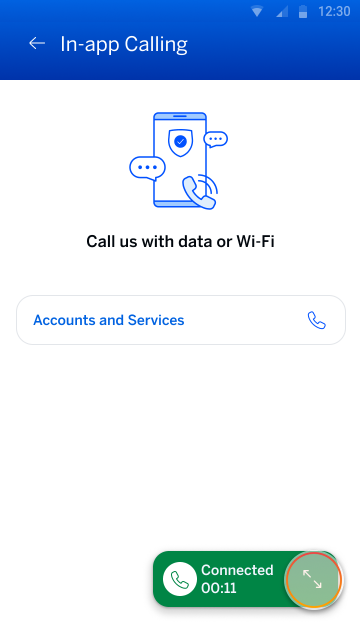
Tap Accounts and Services to initiate the call.
Step 5 of 10
Your call will be connected using your internet connection.
Tap CONTINUE to proceed.
Note:
Data charges may apply if you’re not on Wi-Fi.
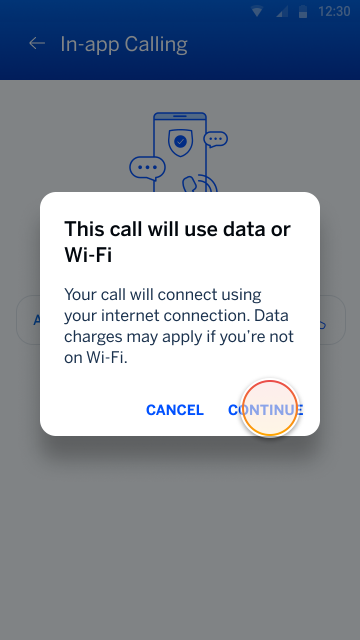
Step 6 of 10
Enable your microphone permission.
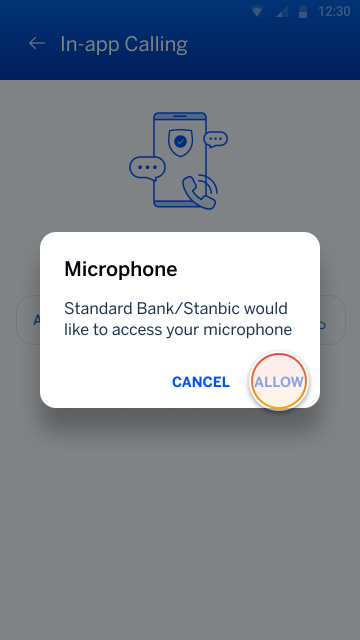
Step 7 of 10
You’ll now be connected to our Call Centre and routed to the appropriate agent for assistance.
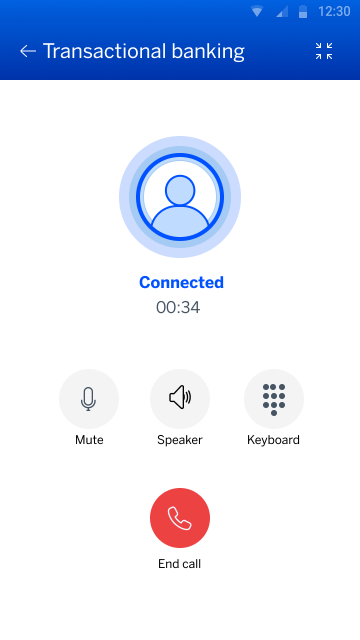
Step 8 of 10
Tap the minimise icon to continue using the Banking App while remaining on your call with an agent.
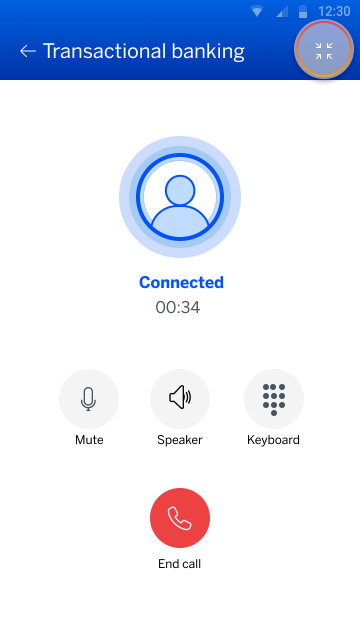
Step 9 of 10
Simply tap the maximise icon to return to the In-app Calling screen.
Step 10 of 10
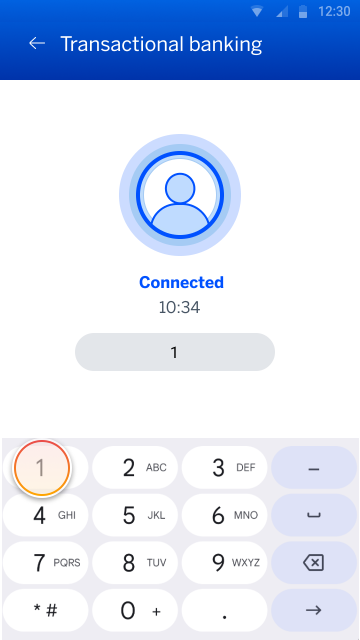
Once the call has ended, use the keypad to complete the customer satisfaction survey.
Frequently asked questions about In-app Calling
What is In-app Calling?
In-app Calling lets you connect directly with our Contact Centre from the Banking App.
Who can use In-app Calling?
In-app Calling is available to DigiMe-registered customers with an active profile on a supported version of the Banking App.
Learn more about DigiMe and how to secure your Banking App profile.
Do I need airtime to use In-app Calling?
No. In-app Calling uses your mobile data or WiFi connection. Standard data charges may apply depending on your network provider.
Is In-app Calling secure?
Yes. In-app Calling can only be initiated from within the Banking App and are securely linked to your authenticated session.
When should I use In-app Calling instead of a normal phone call?
Use In-app Calling when:
- You are already signed into the app
- You want faster authentication
- You need assistance with transactional queries, reporting a new fraud case or following up on an existing fraud case.
Can I use In-app Calling outside of South Africa?
Yes, as long as you have an active internet connection (Wi-Fi or mobile data).
Will the bank agent know who I am if I use In-app Calling?
Yes. Because you're signed into the app, basic profile details are available to the agent, reducing verification time by approximately 1 minute and 5 seconds.
What happens if the call drops?
If the call drops, you can simply press the reconnect button on the In-app Calling feature. If the issue persists, check your internet connection.
Is In-app Calling available 24/7?
Availability depends on Contact Centre operating hours. However, the fraud line is available 24/7.
Can I still call the bank using traditional phone numbers?
Yes. In-app Calling is an additional convenience option and does not replace existing contact methods.
More things you can do on the app:
Keeping your money safe
30 Jul 2024
Supercharge your security with DigiME
Secure your Banking App profile by scanning your face to confirm your identity.

Keeping your money safe
1 Aug 2025
Security update: Trust Call
How to enable Trust Call to protect yourself from phone scams.
New feature
4 Aug 2025
Add a Trusted Person to your profile
Choose someone you trust to spot suspicious transactions.